Showing posts with label Tutorial. Show all posts

Sunday, 15 March 2020

Inspect Element Deep Dive, with Oracle APEX

In my previous post about tweaking APEX classic reports, most of the settings were "low-code" configurations. All except the final line of JavaScript that moved the radio group from its default location, to the region's title bar where we'd normally find buttons.

But how did I conjure that statement?

When I wrote my book on jQuery in APEX, my general premise was each web page can be queried like a database can, you've just got to learn how to apply the filters to find the relevant component.

Browser Tools


In most browsers, if you right-click on any component on the page, then choose 'Inspect Element', you'll see a window appear showing you what the web page looks like prior to markup.

I can also use F12 in Chrome on my laptop to bring up this console window, but don't presume that's the same anywhere - I borrowed a laptop for a webinar once, and it put the laptop in aeroplane mode. I digress... you can dock this console window to the bottom, side, or have it floating elsewhere.

Where is my item?

If I inspect the radio group, it will take me to the specific radio option, in this case 'Accounting'.

As I move the mouse up the tree, different portions of the page will highlight, signifying exactly what part of the page the HTML represents. Sometimes you'll also see orange & green, signifying margin & padding respectively.

Find the relevant component on the page with help from highlighting

I kept going until I found the P29_DEPT_Z_CONTAINER, which holds all of the contents of my radio group item P29_DEPT_Z. The id property allows us to 'query' this page using the filter (selector) #P29_DEPT_Z_CONTAINER.

I can wrap this selector with the $() function to return that portion of the page, a portion I would like to move somewhere else.

You can also see what happens when you enter this in the console window - it returns a result.
$('#P29_DEPT_Z_CONTAINER')

What function do I use?


I use this jQuery cheatsheet to help identify the relevant command I need. Sometimes there's alternates depending on what expression is on either side of the equation.

In this case, I want to take my radio group, and append it to somewhere else on the page.
$('the object I want to move').appendTo('where it is going');

Where is it going?


The next step is to identify the part of the page where my snippet of HTML will be going.

I can use the same inspect element technique to locate a region already dedicated to placing buttons.

Find the destination using the same technique

Here I've located my zhuzh region by the Static ID I've applied (purple), and there is a div the represents the location of the buttons. I can identify this part using one of the classes (red)

Classes are prefixed with a dot when used within selectors
.t-Region-headerItems--buttons

You need to take care when determining which selector to use. IDs should be unique (but aren't necessarily), and classes certainly aren't unique.

A pairing of ID and class is often an effective combination, but you need choose the right class. One you've added your own is often safe, and you can inject classes into the page using various APEX attributes. They can be anything.

This t-Region set of classes is defined within the Universal Theme. One early problem with APEX was these classes would change from theme to theme, as we didn't have a universal theme, so migrating custom code could be awkward.

The UT has changed some classes over time, but documented ones should remain constant.

Verifying the selector


Using the find function in the Elements tab allows you to test your selector, test how many results are returned on the page. If I just use the class, I actually get two results - one for each standard region I have on the page.

Count components on the page by searching in element tab

Combining these selectors will ensure I only get the button class for the relevant region. This is what forms my destination selector in the appendTo().

Testing the move


We can test the final command in the Console tab of the browser tools.

$('#P29_DEPT_Z_CONTAINER').appendTo('#zhuzh .t-Region-headerItems--buttons')

If I test this without using the #id selector, then the radio HTML will be appended to both regions.

Test your command within the runtime page

Once you're happy with the result, you can add it to the relevant portion of your page. In this case, I put it in the page attributes 'Execute on Page Load', though often it's within a dynamic action.

Playing with CSS


While we're here, it would be remiss of me to mention how you can play with the CSS attributes in the browser tools.

Play with styling on the rendered page

In this example I found the background colour property of the radio group label, and turned it green.

This was done without re-rendering the page, but it's only relevant until I do re-render the page, just like when we applied the console command to move the radio group.

But it's a great way to test/tweak CSS commands to see the result before applying it as CSS content rendered with the rest of your page.

The syntax would be similar, we would take a selector, but in the same syntax as what's found in the Styles sub-tab. You can copy/paste from the tab if you're not sure.

.t-Region-headerItems--title {color : red}

This CSS in the page would apply the styling during render of all page markup, but we could also do this on demand with jQuery, with just a slight adjustment to the syntax - and this is but one variation.
$('.t-Region-headerItems--title').css('color', 'red');

Conclusion


These concepts can arm you with some nifty behaviours, above and beyond what comes with APEX.

Or to think of it a different way, if can really empower your use of dynamic actions, as the same instruments can be wielded as a jQuery selector, dynamic action condition, part of set value action, to name a few.

Doing this with an Interactive Report also provided extra challenges.

See a video on how to action this blog here, and the app here.

Happy APEXing!

Tweaking Classic Reports

I like classic reports in Oracle APEX.

They're so versatile, and while it may not look it in this example, adjusting particular declarative settings can make a real difference in a small region displaying pivotal data.

And this still looks like a report. You should see what else they can do.

Left region is default settings, right region has a few options set

Base Behaviour

The classic report is straight out of the wizard, this example performs a cross join to inflate the data set.
select e.* from emp e cross join emp e2
where :P29_DEPT is null or e.deptno = :P29_DEPT


A where clause has been added to filter by Dept, if supplied.

Page Items to Submit

Note one of the most important properties in APEX - Page Items to Submit, in this case nominating the P29_DEPT item.

There is a Dynamic Action defined on Even Change for the item, which simply refreshes the nominated region.

Simple Dynamic Action

If we don't set Page Items to Submit on the region, then the database won't know about the change made on the browser. Any item specified in this list upon refresh will have the current value set in the browser sent to APEX session state (a key/value table in the database), so when the query binds the value, the database knows what the browser knows.

So when I select a department, the employee list refreshes to show the relevant department.

Make Left look like Right

This may seem like a long list, but it doesn't take long at all once you know where to click. I estimate 23 clicks, as of 19.2.
  1. Modify Region properties
    1. Change Template Options for region
      1. Tick Remove Body Padding
      2. Tick Show Region Icon
    2. Add Icon: fa-list
    3. Add Static ID: zhuzh
  2. Modify Report properties
    1. Change Template Options for report
      1. Tick Stretch Report
      2. Report Border Horizontal Only
    2. Change Pagination Type to Search Engine.
    3. Sometimes you may which to turn Heading Type from Custom to Off, or at least disable the sort (by adding order by to SQL, or disabling sort on columns)
  3. Modify Item properties
    1. Change Type to Radio Group
    2. Change Number of Columns to 4 (something relevant to your list. Usually useful for items with small number of options)
    3. Change template option Item Group Display to Display as Pill Button
  4. Modify Page Property
    1. Set Execute when Page Loads
      $('#P29_DEPT_Z_CONTAINER').appendTo('#zhuzh .t-Region-headerItems--buttons')
      This moves everything holding the radio group together, to a spot made for buttons in the region.
      Not something I do often, but can be an economic use of space.

Notes


We've found the search engine pagination style great for touch devices, but I tend to prefer the Display Position on the Left, and at the Top, or at least Top & Bottom.

Report Template Options offer a facility to hide pagination when all rows displayed, but I've never seen it consistently work as I expect, so I continue to use my own JS library call for that.

The static ID can be whatever you like, so long as it doesn't clash with other IDs on the page, such as item names.

See my next post for more detail on how I derived that line of JavaScript, and what you can do with the browser tools.

See a video on how to action this blog here.

Monday, 7 October 2019

So you want to learn Oracle APEX?

Are you involved with Oracle? Perhaps your a DBA, or a PL/SQL data master, possibly know a bit about Oracle Forms, and you want to learn what all the fuss is about regarding Oracle Application Express (APEX)?

My best elevator description? It's a low code development tool that lives in the browser. Yep, the IDE is a web page that allows you to add SQL, PL/SQL, modify a few attributes - and you've got a data driven web based application that runs on any device. Easy for any Oracle technologist to learn.

This is not a new tool, it's been around since 2004, conceptually even before then.
We've built applications that have lasted for years with minimal inteference. They've outlasted other popular frameworks, and they're still within touch of the present. Still doing the basics of the web, in a clever, interactive way.

AskTom has been using this technology before it was called HTML DB.

It's also being mentioned out there, in the world beyond our bubble.

And it's hitting the news for the right reasons - helping natural disasters.

And helping people take action regarding climate change.

This all started from Kscope19, and it appears momentum continues to grow.

So do you want to board this hardy vessel?
The community is strong & passionate.

Use this as your starting resource
http://apex.oracle.com/shortcuts

Sign up for a (no obligation) workspace on apex.oracle.com.

Your web page is your IDE now. Lucky, the modern browser is a nifty place to be.

That's APEX. You paste SQL queries / PL/SQL API calls in a box, change some attributes, and there you go. Simples. You have data driven web applications, ready to use on any device.

As for skillset, I have a few JavaScript one-liners I use regularly, sometimes I embed some simple HTML, and I have a mechanical understanding of CSS - which is just queries against your page content.
You know how a web page works? You know Oracle stuff (SQL, stored procedures)? You'll be fine.

If you have Oracle Forms experience, maybe check this out.

Empty the cup.

Try the documented tutorial
Install some packaged applications, check out how certain features tick.

Looking for your source code? It is just meta-data in some tables, check out
select * from apex_dictionary;
and
select * from apex_applications;
See how far the rabbit hole goes.
SQL developer has some dedicated tools for the job.

Try the Maze Runner presentation by Jorge & Jackie, to find your feet.
Want to know what components are available? go to apex.oracle.com/ut
Charts are particularly awesome: apex.oracle.com/charts
Got a question? Try the forums.
Like a conversation? Try Slack
Happy to chip in for some help? askMax.
Want a place to visit, learn & keep in touch for 5 minutes every day? Try apex.world
They have a page titled "How to start as a developer".
Also check out the plug-ins page, to fill any gaps in the builder.
Steady blog stream available here.
Do you like to listen? There are currently two active podcasts.
If you like books, I particularly recommend the collaborative efforts.
If you like videos, I have a series, and plan another. Caleb Curry also has our back.

Need to load spreadsheet data? This. And this.
Want to talk to web services? Find Carsten.
Do you really need to produce a PDF? AOP (APEX Office Print) is your best option.
Moet dingen vertalen? Translate APEX
Want to get a little funky with your page interactions? Check out Maxime's award winning demo app.
I recommend you learn not what you can do for Dynamic Actions, but what dynamic actions can do for you.

Want a second opinion on this list? Try this Github, because it adapts.

Want to get serious about delivering your app? Get a piece of an 'always free' tier, and check out Dimitri's guide. Or you could build you own stack with the free Oracle XE.

Note, the preferred pronounciation is a-pex, not app-ex. I blame my accent for any mispronounciations ;p This guy knows.

It's also "APEX", not "Apex". Possibly as not to be confused with SaleForce 'Apex', which if I recall is something pretending to be Java. "ApEx" is as painful as camelCase.

You generally need to prefix any searches with "oracle apex"

Or just ask a question on Twitter with the hashtag #orclapex. Someone is bound to point you in the right direction.

Note that even those without a Twitter account can browser activity in this tag. I recommend getting involved, it's an active zone for the Oracle team.
You might see it as #orclAPEX, which not only helps get it right, but helps #a11y

Let me know if you think something else belongs here.

#letswreckthistogether

Wednesday, 5 September 2018

Client Side Dynamic Actions using jQuery Selectors

Consider a data entry page where it might be nice to capitalise the first letter of a person's name, for a number of fields.


I understand I may be anglicising a problem that contains minutia, but focus instead on the thought processes and options we have available using Dynamic Actions.

Let's say we want to create a dynamic action that responds to change on any of those name fields, then runs some JavaScript to apply sentence-case to the name value, before the user submits the page.

We can do this declaratively just using the mouse, APEX will construct a comma delimited list for you as you select page items from the list.

Declarative item selection

But that's not the only way we can nominate components on a web page. The example above might create a selector for those items that is a comma delimited list of IDs.

$('P18_FIRST_NAME,#P18_MIDDLE_NAME,#P18_LAST_NAME');

When we have a look at the underlying HTML defined for these items using Inspect Element, the selector would locate these fields based on the id="P18_FIRST_NAME"

Inspect Element to see underlying details of page components


Alternatively, we could use classes. This is how web developers of any ilk build their web pages. They make up a string that means something to them, then associate some behaviour with it.
You don't need to "define" a class anywhere, but it pays to ensure it's unique, and follows a standard.

In our case, if we could add a class to each item, then we would only need to list one class in the dynamic action.
In some circumstances, this style of coupling behaviour could be more advantageous.

To make "initcap" appear as a class, as shown in the item as highlighted above, add the string to the 'CSS Classes' in the Advanced section of the item properties.


APEX Page Builder makes this task quicker, thanks to behaviour inspired by Oracle Forms - well, some of us ex-Forms programmers will recognise it as such.

If you select multiple items, you can change some properties in bulk.


Over in the properties, we can modify CSS Classes attribute for all three items at once.

Multi-item select in Page Designer

Note the 'Value Placeholder' attribute - this is different for each field, so the delta symbol is shown with the attribute value blued-out. I love this concept.

So back on the dynamic action, we can change the 'Selection Type' to jQuery Selector, and reference the class with the relevant syntax - prefixed with a full-stop, as opposed to the hashtag for IDs.

.initcap

Dynamic action, only when item value all lower case

We also didn't want this behaviour to apply only when all the letters are still lower-case. If the user wants to enter "von Braun", I won't overwrite their particular usage.

So note the client-side condition, emphasis on the 'client'. Most conditions on APEX components are server-side, which generally means they are evaluated during page render - do we or do we not include this button/region/item? Dynamic actions have client side conditions to decide whether to apply the True actions, or the False actions.

$(this.triggeringElement).val().toLowerCase() == $(this.triggeringElement).val()

Here I've referred to the item being triggered using this.triggeringElement, mentioned in the inline help for this particular attribute. Wrapping that expression with $().val() gives me the item value, or I could have used apex.item().getValue. jQuery built in .toLowerCase() does what you would hopefully infer.

As with all things programming, there are many ways to cook an egg, and this goes for setting the value. Here I've define a Set Value action that uses a JavaScript Expression, as there is no need for a round trip to the database server.

True Action - apply change to item value

This expression uses a function I found on Stack Overflow that I was happy with

toProperCase($(this.triggeringElement).val())

I placed in an application level JavaScript file, included via User Interface attributes of the application.
// Turn mcdonald into McDonald
// only run/apply if current string lowercase
// $(this.triggeringElement).val().toLowerCase() == $(this.triggeringElement).val()
function toProperCase(s)
{
  return s.toLowerCase().replace( /\b((m)(a?c))?(\w)/g,
          function($1, $2, $3, $4, $5) { if($2){return $3.toUpperCase()+$4+$5.toUpperCase();} return $1.toUpperCase(); });
}
Most of the JavaScript usage I have in my applications these days tend to be one line, or is some form of expression, so commonly used there is only a small handful.

Don't let a little JavaScript scare you away from enabling useful interactivity for the end user. Dynamic actions do most of the work for you :p

Thursday, 23 August 2018

Pseudo Radiogroup in APEX Report

I'd be surprised if you've ever tried to put a radio group in a report, but if you've ever attempted it you might come across a post from Vincent Deelan.

When it comes to checkboxes and radio groups, the nature of HTML haunts us.

So it turns out it's possible to do the same task within a report, and we can build it so we don't even need to submit the page. It really just depends on how you want the page to interact. The following example simply logs the rating selected, rather than a rating being stored as an attribute of Emp.

This is no doubt even easier with Interactive Grids, but I'm not there yet, and I'm sure others aren't either.
And it's fun using Dynamic Actions to make applications more interactive, and revive draft blog posts from a good 18 months earlier. (I've got a few of these...)

I built a traffic light style report once before, but leveraging off the Universal Theme made this effort so much easier.

Consider the template options for creating a pill button group using standard button components.

Button Template Options

If you create three buttons, all with first, inner, last button sets respectively, you get something that looks like this:

Pill buttons
I refer to them as such because if you use the Inspect Element tool on these buttons, the template option classes are named as such
t-Button--pillStart
Check out the UT button builder for more examples.

So to utilise this in a report, I'll combine three manually constructed buttons, levering other existing classes.
select EMPNO,
       ENAME,
       JOB,
  '<span style="white-space: nowrap;">'
    ||'<a href="javascript:void(0);" data-emp="'||empno||'"'
    ||' class="high t-Button t-Button--success t-Button--simple t-Button--pillStart">H</a>'
    ||'<a href="javascript:void(0);" data-emp="'||empno||'"'
    ||' class="medium t-Button t-Button--warning t-Button--simple t-Button--pill">M</a>'
    ||'<a href="javascript:void(0);" data-emp="'||empno||'"'
    ||' class="low t-Button t-Button--danger t-Button--simple t-Button--pillEnd">L</a>'
    ||'</span>'  rate   
from scott.emp

If you remember to Escape Special Characters for the rate columnm you'll see something like this


Now you could slice and dice the dynamic actions in a number of ways, but here I created one for each type of button. So on click of the relevant class I associated with each button type, it will get the value from the data- attribute, put it in a hidden item, then insert a record.


The Set Value action would set some hidden item using the JavaScript expression
$(this.triggeringElement).data('emp')
The subsequent PL/SQL process would submit this item to session state, and insert the empno/rating selection into the log table. The third action refreshes the Rating region so we can see the new data.

We can make the buttons more pill-like but adding a border radius
span a.t-Button {border-radius: 10px;}


To dull the colours a touch
span a.t-Button{border-color: lightgrey; box-shadow: 0 0 0 1px lightgrey inset !important;}


It would only take a few more lines of jQuery to turn this into a status, leaving the active button highlighted. Plus a slight tweak to the SQL to match the relevant record.

Obviously I had a demo of this, but this draft was so old I've forgotten where I put it ;p

Thursday, 25 August 2016

How to debug stuff in Oracle APEX

Recently a fine young gentleman, who shall remain nameless (let's call him Jerry), asked for some assistance he was getting with an error in Oracle APEX.

He had done all the right things in regard to debugging the problem, but didn't know enough about APEX to know which settings to investigate.

I think developers new to APEX need the occasional post like this to give them an idea on how to start looking into a problem, so I hope you found this knowledge helpful in squishing bugs in future.

The problem.

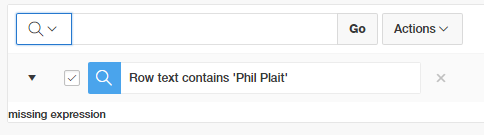
An associate of Jerry's converted a classic report to an interative report. However, when using the search bar to add a filter, the error "missing expression" was shown instead.


We could be fairly certain it's the filter we added that caused the problem, but that's built by the APEX engine. What can we do but perhaps run the page in debug mode to look for clues.

developer toolbar


Jerry enabled debug mode in the developer bar, which refreshed the page, collecting information about the rendering processes within the page. Clicking on open debug, then drilling into the the recent debug entry, using ctrl-F to find the error and you'll see a result like this.

Click/tap to embiggen

The brackets are there, but there's nothing in the middle, hence "missing expression". Jerry told me about this and wondered how this could come to be?

The Hint

Jerry said they recently expanded the capacity to filter stuff on that report, for my benefit, he says... anyway, that's a lead we can follow through on.

It turns out each column in an Interactive Report is configurable at a fairly granular level, and it turns out all columns had the ability to filter disabled.

Isn't it so great we can manipulate 8 columns at once like this?


If a few columns were set as searchable in this fashion, the debug would report a statement that looked like this.
select EMPNO,
       ENAME,
       JOB,
       MGR,
       HIREDATE,
       SAL,
       COMM,
       DEPTNO
  from EMP
)  r
where ((instr(upper("ENAME"),upper(:APXWS_SEARCH_STRING_1)) > 0
    or instr(upper("SAL"),upper(:APXWS_SEARCH_STRING_1)) > 0
))
) r where rownum <= to_number(:APXWS_MAX_ROW_CNT)

Note your own PL/SQL can also contribute to this debug log using the apex_debug package.

But, how?

Anyway, how could Jerry know to look there? Unfortunately the debug machine can't do all our work and tell us what to check. I guess knowing exactly where to look is when APEX developers get paid the foldy notes, in knowing what sort of settings to check out first.

Through experience I guess I had a hunch on where to look and how to get there. Adding to that, any errors you may receive with Interactive Report filters, try repeat the filter for just one column instead of 'row text contains'. I find issues are often isolated to one particular column.

I normally start with the related region if I'm not sure where to start, though these settings are mostly oriented to the region framework, regardless of the widget inside the region - report, chart, plugin etc.

People new to the Page Designer often forget the 'Attribute' node under the columns. This is where you find settings specific to the region type you've chosen.

IR search bar controls are fairly granular, and I remembered that IR columns also had some options, and seeing 'Filter' gave it away for me.

Will we always have a job?

Back to the concept that computers can't do it all. I think us software developers have got it good, because we're the ones who need to design the AI to solve problems without humans. We'll be one of the last jobs to go, right?

Tuesday, 6 May 2014

APEX 101: Cascading Select Lists & Dynamic Actions

This post was inspired by a question on the OTN APEX forum, which contains requests for two fairly common scenarios:
1) A select list dependent on another select list
2) A report the updates based on the selections.

The original post submitted the page after each select change - APEX 4.x makes this unnecessaary thanks to cascading select lists.
And the report can also be refreshed without submitting the page thanks to Dynamic Actions.

So a solution can be formed declaratively without submitting the page, we just need logical SQL to go with it.

Open the sample page, modify the Dept list and see how Emp list changes.
Change the employee to see Dynamic action refresh report based on selection.

The final result doesn't have many components.
Page rendering properties
The P25_DEPT LOV definition is simply
select dname, deptno from dept
The P25_EMP item has a 'Cascading LOV Parent Item' of "P25_DEPT", and LOV which ensures employees are shown even with no dept selected.
select ename, empno from emp where deptno = :P25_DEPT or :P25_DEPT is null
I've enabled display of null values in both select lists.

My report SQL is
select empno, ename, job
from emp
where job = (select job from emp where empno = :P25_EMP)
or :P25_EMP is null
with 'Page Items to Submit' as "P25_EMP", and I've ensured 'Enable Partial Page Refresh' report attribute is Yes.

The dynamic action fires on Change of P25_EMP, and refreshes the report region.

Simple, effective use of declarative APEX features - so you can spend more time on stuff like jQuery ;-)

Tuesday, 19 November 2013

Spice up your APEX application with third party plug-ins

At this year's Australian Oracle User Group Insync13 conference series I conducted a half-day workshop in Melbourne, Brisbane and Perth called "Spice up your APEX application with third party plug-ins"

I selected some commonly used plug-ins that I thought would be interesting and showed attendees how to download, configure and use them. I hoped this would build further awareness of the usefulness and expandability of APEX 4.x

I spent the first 10-15 minutes introducing what plug-ins are all about, and you can find link to the slides here.


I have a tutorial application that demonstrates the eleven GPL/MIT licenced (available for commerical use) plug-ins I chose do illustrate:
http://apex.oracle.com/pls/apex/f?p=PLUGIN

Future readers may find this useful as I've also listed instructions on how to use each of them.

Plug-in instructions
You can now ignore the 'claim workspace' section. On a side note, when running workshops at conferences I certainly learned a few ways to make things run more smoothly!

You can also download setup scripts to run the application in your own environment from here
sagecomputing.com.au/workshops

Many thanks to the author's of the APEX plug-ins that make our lives easier!
Find more at apex-plugin.com

Scott

Wednesday, 31 July 2013

Get SQL Developer 4 going in 4 steps

After a little hiccup on my part, I've started using SQL Developer 4 Early Adopter 1 on two computers I work on. It's pretty easy:
  1. Download SQL Developer 4 and it’s required JDK from:
    http://www.oracle.com/technetwork/developer-tools/sql-developer/downloads/sqldev-download-v4-1925679.html
     
  2. Unpack this to a folder on your system
    sqldeveloper-4.0.0.12.27-no-jre.zip
    I used
    c:\sqldeveloper4EA\ 
  3. Install the latest JDK,  probably not accepting the new toolbar for your browser...
    jdk-7u25-windows-i586.exe
  4. Open by running - I tend to copy a shortcut on my quick-launch bar
    sqldeveloper.exeWhen prompted for location of java.exe the first time you open, I used
    C:\Program Files\Java\jdk1.7.0_25
    I also allow it to copy my existing preferences across.
Job done, let's see what interesting features I encounter. 
The slightly flashier icon
If you want to actively learn more, you must visit www.thatjeffsmith.com

Scott

Monday, 25 February 2013

APEX Tree region use case - Privileges

While experimenting with the APEX tree region, I came up with a use case that demonstrated some of the related features, as well as providing some useful information about the roles defined in my database.

I will note that to do so my parsing schema required access to DBA_ROLE_PRIVS and DBA_TAB_PRIVS - something that was fine in my development environment, but would be rightly questioned in a production scenario, but I will demonstrate nonetheless.

Final layout

My page looks like the following screen grab, and below I break down the steps to get there.

The tree lists roles assigned to user set in the text item, and the accompanying report region displays object privileges for selected tree node / database role.

Tree region and partnering classic report.

Define tree region

First step would be to create a new page based on a tree region.

Accept the defaults, or enter attributes as desired - such as tree template.

Once you get to defining the table or view, I just selected anything because I'm going to override the query once I'm done anyway - so from there I left all attributes as default and created the page.

Edit the page and open the tree attributes to use the following query.
select case when connect_by_isleaf = 1 then 0
            when level = 1             then 1
            else                           -1
       end as status
  ,level
  ,granted_role||NULLIF((SELECT ' ('||COUNT(*)||')' FROM dba_tab_privs WHERE grantee = aa.granted_role),' (0)') title
  ,null icon
  ,granted_role value
  ,null tooltip
  ,'javascript:pageItemValue('||apex_escape.js_literal(granted_role)||')' As link
FROM dba_role_privs aa  
CONNECT BY grantee = PRIOR  granted_role
START WITH grantee = UPPER(:Pn_USER)
Updated to include apex_escape.js_literal

Create supporting items

Now the page is defined we can create some supporting items.

Create text item Pn_USER - this will accept a username to drive the tree query. You could also define this as an Autocomplete item, using the query for the LOV
SELECT username FROM all_users

Then create a hidden item Pn_SELECTED_NODE, source always replacing session state. This value will be set by the Link field in the query, which calls some JavaScript to be defined on your page.

Edit page properties

Edit page and set JavaScript function declaration as
function pageItemValue(somevalue)
{
  $s('Pn_SELECTED_NODE', somevalue);
}
This sets the value of the selected node in a hidden field, which we can listen for changes to refresh another region that displays the relevant object privileges that may be granted to that role.

Create classic report

This report will show the "Object Privileges" for the selected tree node - the selected role.
SELECT table_name, privilege
FROM dba_tab_privs
WHERE grantee = :Pn_SELECTED_NODE
Once created, edit region grid layout to display as desired - I set "Start new row" to No.

Create dynamic action

When the user selects a node, we want the neighboring report to automatically refresh, so we create a dynamic action that listens for change to the selected node.
My dynamic action has the following properties:
Event: Change
Item: Pn_SELECTED_NODE
No condition
Action: Refresh region "Object Privileges"
Dynamic action screengrab
And that's it!

Scott

Tuesday, 23 October 2012

Upgrading to APEX 4.2 in three steps

I found upgrading my laptop's 11gXE instance from APEX 4.1 to APEX 4.2 ridiculously easy:
  1. Stop APEX Listener (5 seconds)
  2. Run install script (19 minutes)
    @apexins.sql apex apex_files TEMP /i/
  3. Restart APEX Listener with new images address (15 seconds)
    java -jar apex.war standalone --apex-images \apex4.2\images
Job done.


Further details & other optional steps found in APEX 4.2 Installation Guide

When I have time I must find out if we can still tweak the APEX login page.

Scott

Wednesday, 23 May 2012

Apex collections - small case study

Where do you want to hard-code your information?

Somewhere pieces of data need to be written down for reference. They could be in a table; in some variables; within the query itself... there would be quite a few possibilities, regardless of the scenario.

Consider this statement:
select * from my_table where my_col IN ('CODE_1', 'CODE_2', 'CODE_3')

If it where the SQL source from your Apex application, it's minimal coding on your part - but what if the list of available values changes? You'd need to send your application, or at least certain components through the change control process. At the moment that can be annoying.

We could move this code to a PL/SQL package, perhaps using nested tables. The code is simple enough, I'm sure we've all done something similar before.

First we define a table of records
TYPE sql_rec IS RECORD
  (col1  VARCHAR2(200));

TYPE nt_sql_vc200 IS TABLE OF sql_rec;
Then in this case a simple function to pipe the information back will suffice.
FUNCTION param_list
RETURN nt_sql_vc200 PIPELINED IS
  r1 sql_rec;
  r2 sql_rec;
  r3 sql_rec;
BEGIN
  r1.col1 := 'CODE_1';
  r2.col1 := 'CODE_2';
  r3.col1 := 'CODE_3';

  PIPE ROW(r1);
  PIPE ROW(r2);
  PIPE ROW(r3);

END param_list;
Now we have no hard-coded literals in our SQL source, and it's just like having a sub-query. If we need to change the code list, we can modify the PL/SQL package - a little smoother for deployment.
WHERE my_col IN 
  (SELECT col1
   FROM TABLE(my_pkg.param_list));
However, in the Apex environment it's still not the most elegant. The Apex team have provided us with a wheel called Apex Collections.

In using an Apex Collection, we still need some PL/SQL, but it's all made a little simpler.
First define a process that might be called when rendering the page
DECLARE
  PROCEDURE add_col(pc VARCHAR2) IS
  BEGIN
    apex_collection.add_member
      (p_collection_name => 'PARAM_LIST'
      ,p_c001            => pc);
  END add_col;
BEGIN
  apex_collection.create_or_truncate_collection
    (p_collection_name => 'PARAM_LIST');

  add_col('CODE_1');
  add_col('CODE_2');
  add_col('CODE_3');
END  build_params_collection;
Then modify the where clause a touch
WHERE my_col IN 
 (SELECT c001
  FROM apex_collections
  WHERE collection_name = 'PARAM_LIST');
There are plenty of reasons out there why you'd want to use Apex Collections - either check out the documentation linked above, or install the sample application and check out how it's done.
Here endeth the lesson.

If anyone has other ideas for this problem, either more elegant or more esoteric, I'm all ears!

Thursday, 22 September 2011

Apex Tutorial: Adding a Read Only Option

Last week Recently I published a tutorial walking through setting up a form and report on the same Apex page. This one done using out of the box functionality, without the use of dynamic actions. Hence this is aimed at those learning the Oracle Application Express development tool.

Edit Feb 2012 :
Bug 13587192 Quick picks are displayed for read-only page items and in Printer Friendly mode
Has been included in the 4.1.1 patchDemo; OTN Forum entry.

We can take this a step further and extend this functionality to open the record in read-only mode first.

1) Modify report link to pass P6_MODE = R, instead of E
Now we have three "modes" View (which doesn't display the HTML region), Read only & Edit.

2) Modify all form items to apply read only condition to P6_MODE = R
Now when you click the link for an employee record, the form initially opens in read-only mode.

3) Modify HMTL region condition to be :P6_MODE IN ('E','R')
We need this region to display in edit and read-only mode.

4) Extend Delete/Save buttons conditions to include :P6_MODE = 'E'
ie => :P6_EMPNO IS NOT NULL AND :P6_MODE = 'E'
We don't necessarily want these buttons being displayed in read only mode. 

5) Create Edit button in the HTML region
You could add an authorisation condition on this button to make editing records available only to privileged users.
* condition :P6_MODE = 'R'
* redirect to page 6 
* passing parameter P6_MODE = E

The problem now if if you have, for example, quick picks on any of your items - these will still be displayed as the read only option only adds the class="display_only" tag to the item definition:
6) So to clean this up, we need to make a copy of item P6_JOB
Use nearby sequence number to create the copy in the same position on the page.
My job field sequence was 30, so I chose 35
7) Remove the quick picks option from copied item P6_JOB_DSP
These are the options we don't want displayed in read-only mode. The user can't save the change, but it looks untidy.

8) Add display condition on P6_JOB_DSP as :P6_MODE = 'R', retaining the existing read only condition.
Alternatively we could set the item type to display only, however we still only want it appearing in read-only mode.
9) Add display condition to P6_JOB as :P6_MODE = 'E'
The original item only needs to appear in edit mode.

We now have a functioning read-only mode option, with an Edit button available to re-open the page in edit mode.
The item list in the page builder will now look more like this:

Run the demo to see it in action.
There are other techniques demonstrated on this page.

I hope that further helps your understanding of some of the concepts available to the Application Express environment.

Scott.

Wednesday, 21 September 2011

Apex Tutorial - Form & Report sharing the same page

During some training recently I walked through the "Form on a Table with Report" wizard to create two pages - one report listing records from a table, which then linked to a form page allowing edits on that table.

I was asked how you could amalgamate the two pages into one. Here is a tutorial that completes this exercise from scratch.
Note: if you have existing pages already defined, I would recommend you copy the report region onto your Form page, and modify the relevant attributes - then remove your report page.

1) First, create a form on page on a table - I use the sample EMP table
* When prompted during the create form wizard, set branch for apply/cancel to the same page you're creating. Note in my case it's page 6.

Now we have a basic form page, where most of the hard work has been done by the wizard, such as defining page processes, branches and item definitions.

You form will look something like this to start with:
2) Now create a report region listing employees from EMP
 This will show a simple report underneath your form:
3) Create item P6_MODE
This will be the catalyst for showing/hiding certain components on the page
4) Create a button called NEW on the Employee List report region
This will allow you to create a new employee record
Action details:
* redirect to 6
* set parameter P6_MODE = E
* clear cache => 6
* condition => COALESCE(:P6_MODE,'V') = 'V'

5) Modify the Cancel button action to set P6_MODE = V
This ensures your page returns to status quo when the cancel button is pressed

6) Modify the branch defined by the create form wizard and pass parameter P6_MODE = V
Whenever you submit your page, it will now return it to status quo

7) Add condition on HTML region that contains your form items to check :P6_MODE = 'E'
Now your form region will only appear when in "Edit mode", such as when the New button is pressed or the user edits an existing record (next step)
8) Modify EMPNO column in the report to become a link
This will allow your user to edit an existing employee record. 
While in the report attributes page, I set the column headings to custom and cleared the heading for EMPNO - just to tidy up the display a touch.
* redirect to 6
* set parameters P6_EMPNO = #EMPNO# and P6_MODE = E

You should now have report page that displays the form region when the New button is pressed, or when you click to edit an existing record. The form region will disappear again once you Apply/Delete/Cancel.
Above is "status quo"; below while editing an existing record
I hope that helps, and I also hope it made sense. I made certain presumptions about you finding the relevant settings - otherwise there would be a real flood of screenshots!

Here is a screen grab of the page builder after all the modifications have been made (the row fetch page render process is off-screen, and shared components section not displayed)


Run the demo to see it in action.
There are other techniques demonstrated on this page.

Check out this tutorial to extend this functionality by adding a read-only step.

Scott