Showing posts with label Page Designer. Show all posts

Thursday, 27 September 2018

Oracle Forms to APEX IDE Transition

If you would like a good high level run-down on why Oracle APEX is a great choice to modernise Oracle Forms, have a read of this.

After listening in on the AskTom Office Hours on this topic (make sure you also read the chat transcript), I had a few ideas for posts to help Forms developers transition to APEX, before my Forms knowledge gets too stale!

If you put the Forms & APEX IDEs together, it's not hard to see they're sown from the same cloth, so to speak.

Oracle Forms

Navigator on the left, properties on the right, layout editor in them middle. All with similar behaviours (link to my videos from a while back)

Oracle APEX 5.1, with custom skin
I thought I'd run down some components within the Forms IDE, and add some commentary.

Before you begin...


The key thing to remember when transitioning from Forms to APEX is ... empty the cup.

Web behaviour changes some UX fundamentals, but it's an environment in which you should already be rather fluent. So forget about how you build applications in Forms, and think about how you want your website to behave.

Render vs Process


Forms renders the Form to the pixel from compiled source files, and you can show/hide elements on the canvas upon certain triggers firing.

A user visiting a URL in APEX will have their HTML page dynamically generated by PL/SQL, with a variety of conditions on components that decide if they're included in the render.

After the page is delivered to the browser, Dynamic Actions then respond to events that may happen on the page before the next page submit, which allows validation and processing of all the values on the page, or a page redirect, which just opens the target, leaving page data behind.

Render, Interaction, or Page Process?

The behavioural difference to remember is that the database knows nothing about the values on the web page until you either
1) submit the page (Processing)
2) execute a PL/SQL dynamic action that submits page items to session state

PL/SQL Dynamic Action

Many of your initial problems will probably relate to forgetting to submit/return these values.

Object Navigator Components


Triggers

Straight into a topic with conceptually different behaviours between Forms & APEX. Triggers in Forms drove pretty much everything. You're responding to some event that user has manifested in some way, often driven by moving the cursor.

In a stateful environment, this behaviour is fine, and made Forms powerful. In the web environment, these triggers don't have much of a 1-to-1 translation, but the main analog here might be Dynamic Actions.

Many APEX pages might handle processing when you submit the page, so you may have validations, computations, and processes that fire, based on flexible conditions.

Interactive pages may have dynamic actions that respond to specific clicks, but not submit or refresh the entire page, just some of it. This reduces network traffic, and enables clever user experiences.

Alerts

Half your messages may come the process that fires when you submit the page, to be shown on the subsequent page.

For instance, you could set the value of a common item P0_RESULT within your process, and display it as the success message using the &ITEM. substitution syntax.

Page Process


For Dynamic Actions interacting with the database, you may want to display the same style message.
Check out this example from Martin using the Supplied API.

Or for dialog behaviour where you control button naming, you might consider using a plugin such as Alertify or Pretius Enhanced Notifications.

Alertify Dynamic Action instance

Attached Libraries

APEX takes care of the JavaScript and CSS libraries that support the Universal Theme, which supports all the components you need for flexible, dynamic applications.

You can include your own JavaScript and CSS in several ways, mostly via the page attributes.

Page CSS attributes

You can choose to add inline code, reference files that exist either in the database as a BLOB (#APP_IMAGES#), or sitting on the middle tier, typically served by ORDS, perhaps sitting on a Web Logic Server, prefixing the file location with #IMAGE_PREFIX#.

If you use a decent amount of custom JavaScript, you may wish to consider APEX Nitro.

Data Blocks

As a Forms developer, I remember spending a lot of time managing details of the data block, and they generally either broke up the page into chunks of data, or held buttons & hidden items.

In APEX, you could say similar things about Regions. Each page is broken up into a bunch of regions, which could come in many forms. Check out the Component Templates available in the Universal Theme.

You can even construct master-detail relationships in APEX. There are no Relations to define, but relationship properties are set within the Region attributes.

Editors

I don't recall using Editors much in Forms, but if you want to handle large objects of the character variety, then you might consider the OraOpenSource plugin.

Events

I don't remember using Events, but I believe they allow die-hard Forms developers to extend their application with JavaBeans.

If there is something that APEX doesn't do out of the box, it will probably be worth looking to see if anyone has built a plugin for APEX to do so. Some of these are absolute crackers. Once I did a session on consuming plugins.

LOVs

I think the Record Group element is manifested as an LOV definition now, that can be shared in a number of places.

An LOV in APEX is more coupled with the Item type. A radio group works well with a small handful of values, Select Lists for middle sized sets, and perhaps the Select2 or I really like the Modal LOV plugin for larger sets to be dynamically queried, while still mastering the keyboard entry.
Or you might even define your own modal page to fetch a value.
There is a native Popup LOV, but I don't like it.

Object Groups

Object Groups and Property Classes in Forms are little more vague than the rest, since this was the sort of thing that would be set up once in a blue moon, utilised many times.

I think a comparison for grouping objects in APEX might be item plugins, possibly project specific.

Or maybe blueprints.

Parameters

Page Items are populated between pages to pass information to the next page, such as the selected record in a report.

Declarative Page Target


Larger forms with a number of items are generally submitted as a whole, where the page process handles the data, and branches to the next page.

These values can be protected from URL tampering by session state security, at item, page, and application levels, often by default.

Popup Menus

I've seen explorations of contextual popup menus here, and here.

The APEX team have implemented them within the Page Designer - my favourite is the duplicate option.

Program Units

When I used Forms, the general mantra was to keep code out of item/block level events, and manage packaged procedure calls from within program units.

But we've all seen Forms written with a spectrum of best practices applied. This is where many of the performance problems could lie, especially poorly used post-query triggers.

For Forms to APEX migration projects, this is probably where most of your gold lies - all the business rules you want to keep. Depending on how well the application is written, you might get to re-use a lot of it, but in my experience, few Forms projects used SmartDB concepts.

If you're aiming for a certain % of re-use, don't aim too high. The code in here can be good guide for the developer in refactoring behaviour, but the APEX page(s) could end up looking and behaviour different to what you had in Forms, if only because you're now in a browser. Thought it could be because you've reviewed the business process since the Form was written 2 decades ago, or you've replaced a lot of the keystrokes with button taps.

Property Classes

Property Classes in Forms allowed the developer to utilise common attributes among each instance of a component.

In APEX we can define User Interface Defaults in the data dictionary, so that each time items or reports are created for specific tables or columns, the same features are applied by default.

As for the style of the application, classes could be applied to components that carry a particular look & feel. The Universal Theme has a default skin that can be reconfigured declaratively.

Record Groups

Record groups where just the SQL component of the LOV.

Head to an application's Shared Components, then locate LOVs. They can be dynamically driven by a SQL query, or be statically defined. Static definition allows a variety of conditions to be applied to each entry.

These LOVs can then be associated with Items such as Radio Groups & Select Lists, or with a column in a report, to translate a code to a label.

Reports

Reporting in APEX is a deep rabbit hole. Conceptually, all your reporting can now be inline - live.
Your power users can be given Interactive Reports with a number of runtime manipulation options.
Oracle JET charts can respond to clicks, allowing drill down functionality, in whatever way you want.

Or you could go down the yellow brick road and choose a tool to dynamically generate PDF documents, Excel spreadsheets, Word files etc.

Visual Attributes

Template Options seem to be a fair comparison here, where common group of settings can be tailored to each instance of a component.

Windows

Application workflow differs between Forms and APEX due to the nature of their environments.

In APEX most interactions happen within the browser window, within an inline modal (just a special looking page region), within a page modal. From APEX 5.x this became native and easy, allowing modals to have validations and branches, just like standard pages.

Menus

Forms had specific menu files, controlled by database roles, and there had to be no active users to be able to update the .mmx file.

The menu in APEX can either be across the top, or down the left side. These menus can be statically defined, or dynamically driven, even by the meta-data that is apex_application_pages view. (my link)

Static navigation entries could be controlled by authorisation schemes, or custom conditions.
Dynamic menus can have security tables integrated within the SQL.

There are a few list templates that follow the same data structure, just rendered in different ways.

There is a smaller Navigation Bar at the top right, typically starting with the login/logout buttons.

Canvas

Forms is WYSIWYG, I'm sorry for your loss. An APEX page needs to be rendered in a variety of devices sizes, so items go where the responsive templates tell them to go. You can impact this using the grid layout, but it can take a little while to get the hang of it. Showing the columns helps, particularly with item layout.

Show Layout Columns
APEX also includes a palette of components ready to drag onto the layout editor, which I primarily use to check if items/regions are set to Start New Row or not.

Properties

The Page Designer introduced in APEX 5.0 is rather reminiscent of Oracle Forms, particularly with regard to the ability to edit multiple components at once, only intersecting attributes, and obscuring heterogenous values.

As with Forms, finding the right property can be tricky, or even being aware of its existence.

I highly recommend you take note of the inline help associated with each attribute. I'm sure this content improves with every version, even without inline feedback (hint hint).

Inline Attribute Help

Let me know if you think I've forgotten something vital here, or misaligned features.

Here are some other links on the topic of Forms transition to APEX:

When Forms to APEX Projects get thorny - Rodrigo also responding to the AskTom session
Oracle Forms Migration - Some recent thoughts (that need some revision)
APEX 5 Page Designer walkthrough - my prezi session looking specifically at the Page Designer IDE.
AskTom Checklist
Office Hours Q&A
APEX for Forms Developers - Kscope presentation

Wednesday, 5 September 2018

Client Side Dynamic Actions using jQuery Selectors

Consider a data entry page where it might be nice to capitalise the first letter of a person's name, for a number of fields.


I understand I may be anglicising a problem that contains minutia, but focus instead on the thought processes and options we have available using Dynamic Actions.

Let's say we want to create a dynamic action that responds to change on any of those name fields, then runs some JavaScript to apply sentence-case to the name value, before the user submits the page.

We can do this declaratively just using the mouse, APEX will construct a comma delimited list for you as you select page items from the list.

Declarative item selection

But that's not the only way we can nominate components on a web page. The example above might create a selector for those items that is a comma delimited list of IDs.

$('P18_FIRST_NAME,#P18_MIDDLE_NAME,#P18_LAST_NAME');

When we have a look at the underlying HTML defined for these items using Inspect Element, the selector would locate these fields based on the id="P18_FIRST_NAME"

Inspect Element to see underlying details of page components


Alternatively, we could use classes. This is how web developers of any ilk build their web pages. They make up a string that means something to them, then associate some behaviour with it.
You don't need to "define" a class anywhere, but it pays to ensure it's unique, and follows a standard.

In our case, if we could add a class to each item, then we would only need to list one class in the dynamic action.
In some circumstances, this style of coupling behaviour could be more advantageous.

To make "initcap" appear as a class, as shown in the item as highlighted above, add the string to the 'CSS Classes' in the Advanced section of the item properties.


APEX Page Builder makes this task quicker, thanks to behaviour inspired by Oracle Forms - well, some of us ex-Forms programmers will recognise it as such.

If you select multiple items, you can change some properties in bulk.


Over in the properties, we can modify CSS Classes attribute for all three items at once.

Multi-item select in Page Designer

Note the 'Value Placeholder' attribute - this is different for each field, so the delta symbol is shown with the attribute value blued-out. I love this concept.

So back on the dynamic action, we can change the 'Selection Type' to jQuery Selector, and reference the class with the relevant syntax - prefixed with a full-stop, as opposed to the hashtag for IDs.

.initcap

Dynamic action, only when item value all lower case

We also didn't want this behaviour to apply only when all the letters are still lower-case. If the user wants to enter "von Braun", I won't overwrite their particular usage.

So note the client-side condition, emphasis on the 'client'. Most conditions on APEX components are server-side, which generally means they are evaluated during page render - do we or do we not include this button/region/item? Dynamic actions have client side conditions to decide whether to apply the True actions, or the False actions.

$(this.triggeringElement).val().toLowerCase() == $(this.triggeringElement).val()

Here I've referred to the item being triggered using this.triggeringElement, mentioned in the inline help for this particular attribute. Wrapping that expression with $().val() gives me the item value, or I could have used apex.item().getValue. jQuery built in .toLowerCase() does what you would hopefully infer.

As with all things programming, there are many ways to cook an egg, and this goes for setting the value. Here I've define a Set Value action that uses a JavaScript Expression, as there is no need for a round trip to the database server.

True Action - apply change to item value

This expression uses a function I found on Stack Overflow that I was happy with

toProperCase($(this.triggeringElement).val())

I placed in an application level JavaScript file, included via User Interface attributes of the application.
// Turn mcdonald into McDonald
// only run/apply if current string lowercase
// $(this.triggeringElement).val().toLowerCase() == $(this.triggeringElement).val()
function toProperCase(s)
{
  return s.toLowerCase().replace( /\b((m)(a?c))?(\w)/g,
          function($1, $2, $3, $4, $5) { if($2){return $3.toUpperCase()+$4+$5.toUpperCase();} return $1.toUpperCase(); });
}
Most of the JavaScript usage I have in my applications these days tend to be one line, or is some form of expression, so commonly used there is only a small handful.

Don't let a little JavaScript scare you away from enabling useful interactivity for the end user. Dynamic actions do most of the work for you :p

Thursday, 25 August 2016

How to debug stuff in Oracle APEX

Recently a fine young gentleman, who shall remain nameless (let's call him Jerry), asked for some assistance he was getting with an error in Oracle APEX.

He had done all the right things in regard to debugging the problem, but didn't know enough about APEX to know which settings to investigate.

I think developers new to APEX need the occasional post like this to give them an idea on how to start looking into a problem, so I hope you found this knowledge helpful in squishing bugs in future.

The problem.

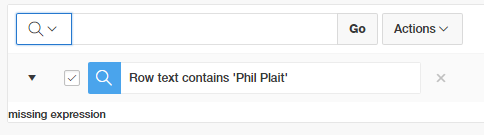
An associate of Jerry's converted a classic report to an interative report. However, when using the search bar to add a filter, the error "missing expression" was shown instead.


We could be fairly certain it's the filter we added that caused the problem, but that's built by the APEX engine. What can we do but perhaps run the page in debug mode to look for clues.

developer toolbar


Jerry enabled debug mode in the developer bar, which refreshed the page, collecting information about the rendering processes within the page. Clicking on open debug, then drilling into the the recent debug entry, using ctrl-F to find the error and you'll see a result like this.

Click/tap to embiggen

The brackets are there, but there's nothing in the middle, hence "missing expression". Jerry told me about this and wondered how this could come to be?

The Hint

Jerry said they recently expanded the capacity to filter stuff on that report, for my benefit, he says... anyway, that's a lead we can follow through on.

It turns out each column in an Interactive Report is configurable at a fairly granular level, and it turns out all columns had the ability to filter disabled.

Isn't it so great we can manipulate 8 columns at once like this?


If a few columns were set as searchable in this fashion, the debug would report a statement that looked like this.
select EMPNO,
       ENAME,
       JOB,
       MGR,
       HIREDATE,
       SAL,
       COMM,
       DEPTNO
  from EMP
)  r
where ((instr(upper("ENAME"),upper(:APXWS_SEARCH_STRING_1)) > 0
    or instr(upper("SAL"),upper(:APXWS_SEARCH_STRING_1)) > 0
))
) r where rownum <= to_number(:APXWS_MAX_ROW_CNT)

Note your own PL/SQL can also contribute to this debug log using the apex_debug package.

But, how?

Anyway, how could Jerry know to look there? Unfortunately the debug machine can't do all our work and tell us what to check. I guess knowing exactly where to look is when APEX developers get paid the foldy notes, in knowing what sort of settings to check out first.

Through experience I guess I had a hunch on where to look and how to get there. Adding to that, any errors you may receive with Interactive Report filters, try repeat the filter for just one column instead of 'row text contains'. I find issues are often isolated to one particular column.

I normally start with the related region if I'm not sure where to start, though these settings are mostly oriented to the region framework, regardless of the widget inside the region - report, chart, plugin etc.

People new to the Page Designer often forget the 'Attribute' node under the columns. This is where you find settings specific to the region type you've chosen.

IR search bar controls are fairly granular, and I remembered that IR columns also had some options, and seeing 'Filter' gave it away for me.

Will we always have a job?

Back to the concept that computers can't do it all. I think us software developers have got it good, because we're the ones who need to design the AI to solve problems without humans. We'll be one of the last jobs to go, right?

Tuesday, 5 April 2016

On asking questions on APEX forums

I'm a regular contributor to the Oracle APEX forum and something I'd like to note is the amount of questions that possibly wouldn't need to be asked if one had consulted the help of the attribute in question.

For example, here someone asked about referencing page values in the Email built-in process.

I managed to interpret the question two different ways on reading it twice, so I would also plead with people asking questions to supply code. If you've ever asked a question at AskTom you might appreciate the value of a good test case in providing context, and the ability for someone willing to help out to quickly investigate the problem.

APEX questions can be a little harder since often you can't just provide a set of SQL commands. This is where supplying an image can truly paint a thousand words. If I had even just the middle section of this screenshot from APEX, I would have known exactly how to answer the question.

APEX 5 Page Designer Attribute Help

The same type of help is also available in 4.x by clicking the attribute label.
APEX 4.x Attribute Help
And if you're still using the Component View in APEX 5 it will be in the same place, but I recommend you give the Page Designer a go - I find it far more productive with far less clicks and jumping between pages.

So next time you have trouble figuring something out, check out the inline help.

While the help descriptions have improved in APEX 5.0, the feedback option is still "Coming soon", so perhaps this will be made available during the 5.1 release.

At least we had another outcome of this question, Jeff learned about a type of process he wasn't familiar with ;p.

I have a presentation in mind on this topic, but in the meantime, here is Exhibit A on asking questions
https://community.oracle.com/thread/4168286

Monday, 3 August 2015

APEX 5 Colour Contrast

During the APEX 5 early adopter I remember a bit of discussion going around regarding the colour contrast.

Edit: Related reading
"How the web became unreadable"

I would have been one of the complainers, and it's one topic I forgot to raise with the team when I met them at Kscope.

Use of APEX 5 is ramping up at my current site and I couldn't go any further without having a little play. A while ago I used some filters in my ad blocker extension to trim the fat from the OTN forums pages.


I'm come across an even better Chrome extension since then called Stylebot and now it's really easy to manipulate pages you regularly visit.

If you like having a secondary browser for development, you can use Stylish for Firefox.

For instance, when you open the extension you can nominate elements on the page then declaratively define some attributes to use every time that page loads on the specified site.

Stylebot interface
After farming the blue colours from APEX 4.2, I applied this to the region titles when editing component properties. I personally found this so much easier to scan the page and look for the attributes I need.

Modified on the left, original on the right.

Shared component properties
It's almost like the difference between quickly reading a mixed case sentence and READING SOMETHING LIKE THIS WITH NO HEIGHT DIFFERENCE WITHIN THE WORDS.

I did the same thing for the Shared Components home page, though this UI will also be revamped like the page designer at some point in the future

Shared Components
Speaking of the I gave the same treatment to the property palette in the page designer.

Page Designer properties

People have already asked for me to post my tweaks, and it turns out Stylebot allows you to share them so here is mine:
Oracle APEX 5 fitted with 4.2 contrast
This also works no worries with 18.2, and 19.x. Using dark mode in 19.2 will need a different set of CSS, though adjustments I made for the green motif in 20.1 seem to cover both light & dark.

APEX 20.1

No doubt I'll make adjustments in future as I explore the environment and see what works, I'll be sure to keep it up to date. I'm happy to hear suggestions, and perhaps news from the APEX development team that they're thinking of adding built-in styling options to the development environment, kind of like skins.

For completion, here are the styles I used so far.

@import url(http://fonts.googleapis.com/css?family=Georgia);

/* Component properties */
.a-Body .a-Main div.a-Region-header {
    background-color: #cfdef0;
    border-style: none;
    border-width: 1px;
    border-color: rgb(170, 170, 170);
}

.a-Body .a-Main h2.a-Region-title {
    font-weight: bold;
    font-family: Helvetica;
    font-size: 14px;
}

/* Shared components */
.a-Body .a-Main span.a-LinksList-label {
    font-size: 14px;
}

.a-Body .a-Main label.a-Form-label {
    font-size: 13px;
}

.a-Body .a-Main li.apex-rds-item.apex-rds-after a span {
    font-size: 13px;
}

.a-Body .a-Main li.apex-rds-item.apex-rds-first.apex-rds-selected.apex-rds-item--hint a span {
    font-size: 13px;
}

/* Frame some buttons */
.apex-page-designer div.a-Region-headerItems--buttons button {
    border-style: solid;
    border-width: 1px;
    border-color: #949494;
}

.apex-page-designer button.a-Button {
    border-width: 1px;
    border-style: none;
    border-color: #949494;
}

/* Page designer properties */

.apex-page-designer div.a-PropertyEditor-propertyGroup-header {
    background-color: #cfdef0;
}

/* Component view */
#ContentBody div.aRegionHeading {
    background-color: #e8e8e8;
}

#ContentBody div.aRegionHeading h1 {
    font-weight: bold;
}

#ContentBody tr td a
,#ContentBody tbody tr td {
    font-size: 13px;
}


/* Emphasise disabled buttons */

.apex-page-designer div button.a-Button:disabled {
    color: #d6d6d6;
}

/* Substitution string width */
#BB input[id^="SUBSTITUTION_VALUE"]
,#BB input[id^="SVAL"]{
    width: 500px;
}

/* apex 5 */
input[id^="SUBSTITUTION_STRING"]
,input[id^="SSTRING"]
{
    /*max-width: 300px ;*/
    text-align: right;
}

/* Hover designer buttons */
button.a-Button.a-Button--goToPageButton.a-Button--pillEnd:hover
,button.a-Button.a-Button--noLabel.a-Button:hover {
    background-color: #d0e4fa;
}

/* Search box */
.a-SearchBox--autoExpand .a-SearchBox-input {
    width: 170px;
    background-color: #ffffff;
}

/* Success window */
#pdNotification {left: 40px;}
/* Make locked pages stand out more in page list */
#apex_pages_irr span.a-Icon.icon-lock {
    color: #ff0000;
}
/* Widen 5.1 scrollbars */
.u-ScrollingViewport::-webkit-scrollbar{
    width: 13px ;
}

/* Hide those darn tooltips 
   18.x undo now comes under this, but I can't specify just the PD tooltips
#a_PageDesigner .ui-tooltip {display:none;}]
*/

You may also be interested in Filip's XPlug extension to further tweak the Page Designer.

See a video describing how this is done here.

Happy APEXing!

Monday, 22 June 2015

KScope15 APEX Symposiums

Kscope15 officially kicked off on Sunday with a set of symposiums, I stayed in the APEX room the whole day, though I really wanted to hear what Steven Feuerstein had to say after lunch in the other room. I also hear a great discussion was had in the ADF room on tablet first vs mobile first.

APEX Episode 5 (A new frontier)

Joel Kallman kicked off the movie themed symposiums with a great talk about how APEX really is the enterprise solution people want/need, despite what other people say about it - and the fact it has been so for some time.
It wasn't a technical talk, but set a great tone for rest of the conference. Kudos to his delivery, it seemed well thought out and provided a powerful message about the wonderful tool that it is.

He mentioned interactions with various community members and highlighted how powerful the community has become in driving the evolution of the product. His praise indicated how vital community interaction is for the success of APEX compared to other tools on the market that have limited to no interaction with their customers.

This reminded me of something mentioned by Mike Hichwa regarding how the team uses the product to build packaged applications, compared to the Oracle Forms team who never used the final product. It makes a big difference.

Need for Speed (Page Designer)

Patrick Wolf formally introduced the group to the APEX 5 Page Designer, and various little tools within it that make development so much easier. The IDE truly is a marquee feature that shows how APEX has matured as a modern, advanced development tool.

Here are some great nuggets that are worth checking out

  • A specific grouping for dynamic actions fired on Page Load
  • Additional context menu facilities on various components, such as "create opposite action", something originally found just within the create DA wizard
  • Right click to delete, no prompt since we can just undo actions in the IDE
  • Drag/drop in the grid layout, far advanced compared to 4.0
  • Bulk property edits, just like Oracle Forms - one of my favourites
  • Updated help text for component properties
  • Code editor highlighting, including validation and auto-complete for page items and core packages
  • Block edit within code editor
  • In-browser searching including option for regular expressions
  • Shared component references and grouping, another of my favourite innovations 
Polite applause was extended for some of the features as Patrick announced them, showing community appreciation.

Interstellar (Universal Theme)

Shakeeb Rahman gave us an overview of the fantastic Universal Theme. It was an overview as opposed to a detailed look at how it all works, I think other presentations will be going into further detail on specific features.

One admission that came early was that further enhancements are to come as further feedback comes in, but the theme has been integrated into the APEX environment in such a way to make it easier to incorporate these in your applications in future releases.

He covered three major points.
  1. Responsiveness - the new theme is leagues ahead of the capabilities of Theme25, which admittedly had shortfalls. It was interesting to note that accommodations have been made for things like tap event handling, to hand the 300ms wait time back to the users. I've used Touch Punch in the past to help with this.
  2. Versatility - Lists are more heavily used in APEX 5 for navigation aids, which I think is great because they are a versatile feature. The menus are built with Accessibility in mind, and support keyboard navigation. Icon libraries have been included, with room to extend in future releases.
  3. Options - I can't remember if this was the actual heading, but the declarative options now provided with templates will help developers build more consistent applications without the need for deeper CSS skills. Template Options give developers the same type of declarative CSS assistance Dynamic Actions did for JavaScript. It's a deep topic that needs it's own sessions but there are plenty built in demonstrated in the Universal Theme sample app.
    The Theme Roller enables re-colouring the application to a far greater extent than 20 variations on a similar theme could ever do. I reckon even my colour-blind friend could use it to build a scheme that contrasts well.
    Entire themes can also now be subscribed.

The Fifth Element (Mobile + HTML5)

Marc Sewtz braved the world of live demos to show developers improvements made to the mobile user interface. I found this interesting to compare to how we solved problems in developing for 10" tablets using the desktop interface. 

Not much appears to have changed from the developer's perspective (except for integration with the new IDE), but many HTML5 features have been incorporated into the build.

Out of the various suggestions Marc made for developing responsive apps with the universal theme, I think the most important was thinking "mobile first". This is regardless of the technology you're using.

Matrix Reloaded (Interactive Reports)

Anthony Rayner (one of a few faces I'm not sure I've ever seen) ran through what features APEX 5 provides for Interactive Reports.

  • Intro - reminder for the group on what IR are all about
  • Modernised - more CSS, more client side processing means more snappy interaction for the users.
    Accessibility standards are now met and plenty of people seemed to have questions regarding this, though it's a shame it got picky and slowed the flow of what Anthony had to say. His main point on this was regardless of whether you need to meet these standards, you should consider them while developing to help promote better applications.
    • Action icons have been restored. 
    • Single row view has been modernised. 
    • Column options have been modified to help accessibility issues, but all will reap benefits. 
    • Report and column widths are responsive to the page. 
    • Dialogs are used instead of dropping down content. 
    • Settings and filters have been cleaned up and enhanced.
  • Extended - plenty of new features added in APEX 5
    • an impressive pivot feature has been added to user options. 
    • Multiple IRs can now be defined per page, it's best to ensure they have their own ID.
    • Headers fix to the top of the page
    • Theme roller also integrates with IR 
  • Upgrading - Main issue coming out of complete IR revision relates to the gReport object and upgrading older reports. Any markup on 4.x report will probably no longer work.

The Prestige (Migrating to Theme 42)

Shakeeb came back to help the community migrate to the Universal Theme, using pre-packaged applications as an example..

Head to apex.oracle.com/ut and find the Bookmarklet to help with migration to switch to Theme 42.

Reset grid option. Default option probably handy, "Reset fixed region positions" but worth exploring what happens to your application with each. It will really depend on where you're coming from. Plenty of help on the topic by clicking ? icon next to option.

Shakeeb started by demonstrating how to update the login page to match a pre-packaged application built on APEX 5. He showed how easy it was to find, copy and apply various properties using the Page Designer.

Icons were real easy to add to the navigation menu using pop-list options to select font-awesome icons.

Existing regions had plenty of customisations to aim for responsive layout. Shakeeb removed a bunch of these, showing how ready Theme 42 is out of the box.

Buttons were easy to adjust and modify with some dragging and dropping in the grid layout, with basic tweaks to make them iconic.

Template options also came into play to help tweak page layout.

We can now create copy (and/or subscribe) of existing plugins from another application which was missing from previous releases.

List template attributes are introduced in APEX 5 to help work out what the 1-10 attributes are for the relevant tempate - very neat.

Change one attribute to convert existing pages into modal pages and all the links automatically treat the page accordingly. Now clean up the page to suit being modal, again solved with declarative features and region template options.

Rinse and repeat for your entire application, I guess! Shakeeb certainly had plenty to say about conversion and offered to give the crowd more (but I think many are ready for a beer). I look forward to more session content from him.

Conclusion

Bring on day 1

Sunday, 26 October 2014

ODTUG Webinar: APEX 5 Page Designer

I'll be presenting an online webinar for ODTUG not long after the Perth conference.

It will be the same session I did for AUSOUG back in July, which is lucky since it's 6am for us Perth locals. It's a close look at the Oracle APEX 5 Page Designer, and what it means to you as an APEX developer.

Check the webinar registration page for details on the abstract and help with the time zone conversion for: Thursday, November 20, 2014 5:00 PM - 6:00 PM EST

It was originally written as a Prezi, but due to my ordinary ADSL connection I've had to convert it to PDF. It translates ok but some of the magic is lost. I'll provide a link to the Prezi on the day and you should be able to follow along with the original if you wish.

Even if you're like me and still love the component view, I reckon once you see all the benefits of the new IDE, you'll be a convert and will be itching for the new release to finally arrive.

Tuesday, 25 March 2014

APEX 5 first peek - What I missed

When tackling early adopter versions I've enjoyed having a play before reading too much about it. I did look through the EA1 feature descriptions to get a feel for the sort of things to expect, but I waited before watching David's videos to see how easy it was to adapt to the changes - even though I wasn't concentrating on the new page designer itself.

It was certainly worth watching the videos in the end because not only does he describe the new features in the page designer really well, he outlines the state of play for the early adopter release.

So while I haven't gone too deep into the new page designer functionality, here are some less obvious features I think are worth mentioning.

New context menu options

I didn't notice the new options under the right-click when viewing components in the rendering/processing accordion options. I guess I missed these because I rarely use the Tree View.

So when David Peake pointed them out in this video - I agreed it would be a simple way to improve developer productivity, and I know I'd use them all the time.
  • Duplicate 
  • Delete
  • Copy to other page
How many times have we thought - wouldn't it be great if this could be done in one click?
Well, now it's done in two - but super fast, and no wizards.
Component Context Sensitive Right-Click
Copying (& duplicating) is great, but we've always got to be sure not to encounter what we call a cut & giggle, where you forget to change something minor during the process of copying. This is made worse when APEX misses a few attributes, or doesn't change the page prefix.

I've been on a project where copying dynamic actions to other pages was done frequently, and since they're a little newer they haven't had the time to perfect minor copy glitches - similar to those that used to appear copying pages in 3.x. Time will tell if this is still an issue, but we've been promised improvement.

Undo - viewing last change

Undo is one of the first features you might spot in the new page designer, but what I didnt' realise was the tooltip text you see when there is stuff to undo. Of course, I spotted this after I logged feedback suggesting we see a list of outstanding changes when we leave an unsaved page.
Undo Tooltip
Thankfully undo also works to restore deleted components - which may be a frequent accident with the new context menu option.

Autocompletion

When editing page templates I noticed a message under the text area to press ctrl-space to activate autocompletion - nothing happened there nor when using the modal edit (EA1) - but when editing using the Text Editor in the page designer it invokes an autocomplete.
Text Editor Autocomplete
You've probably seen this in products like SQL Developer, some people love it. Personally it's the first feature I turn off because I can't stand the lag it introduces. At least here in APEX it is only on demand.

Page designer search

While I did appreciate the search application feature that came with 4.x, I'm really liking this new feature available near the gallery in the middle of the page designer.
Page Designer Search
Results are instant, and when you click on a result the component is automatically selected and properties shown. Another big productivity booster.

Multi-item updates

Former Forms developers will particularly like this one - using the CTRL key you can select multiple heterogenous components and then update common properties in the editor in one go.
Multiple components selected

The property editor (which no doubt I'll continually also call a palette) shows only common properties, and those properties that differ will be shown with a triangle/delta icon with value redacted under a blue shade.
Forms style property palette
I loved this feature in Forms because you could quickly identify any differences between items, of course in addition to making changes in bulk.

There are also little red triangles above certain properties, but I'm not sure what it indicates. In Forms we saw something like this indicate a value differing from default - but it doesn't seem that here, not are they identifying common attributes. Perhaps the APEX team might elaborate at some point, unless I forgot it mentioned in a video - anyone?

User interface

Something you may have noticed I've missed is commentary regarding other user interfaces. I've just neglected to mention it so far.

There are new features regarding the mobile UI which I'll cover in another post some other day - though there may be enough changes for a few posts.

And disappointingly for my current project interests, the tablet UI has been bumped to 5.1. This is a real shame because it's been an interesting challenge to adapt a desktop interface to a 10 inch touch screen environment. I'm keenly awaiting what goodies the APEX team may provide to make this task easier.

-- Is there something you've seen so far that has excited you that I haven't covered?

Wednesday, 19 March 2014

APEX 5 first peek - Navigation

The new Page Designer has brought with it a number of fundamental changes in how you move around the application builder.

I won't go into the designer itself because David Peake covers that well in his video - but some of the other things I noticed before watching David's videos. I will say, however, in addition to all this you'll find yourself using wizards a lot less

Moving around

If you start playing with property attribute values you'll find when it comes to moving between components & pages, we now have a warning for any unsaved changes. There have certainly been a few times when I wonder if I'm going crazy thinking - did I save? Now I'll know.
Though similar I believe to the way Oracle Forms used to behave, currently if the cursor doesn't leave an attribute before selecting another component on the page - it won't get recorded as a change.

By the way - you can check out people's feedback on the early adopter so far. I've put in a suggestion to potentially see a list of the outstanding changes we may have forgotten about, or wondering if we can ignore them all.
https://apexea.oracle.com/pls/apex/f?p=4840:5:0::NO:5:P5_ID:275492489463389040

Developer Action Bar

In regard to navigation options, this has probably undergone the most noticable change - I certainly spend a lot of time up there, pressing edit page or opening shared components - or typing a page number in the search widget.
APEX 4.2 action bar
This screenshot differs slightly when editing pages - it includes lock & export icons.

The new action panel currently has two distinctly different modes. The minimal toolbar shows the core options - on icons who's meaning we'll have to re-learn. (I hate learning new icons)

Amusingly (for me) the shared components icon is a triangle, circle & square - the original name of my blog. I also find it vaguely reminiscent of the old Electronic Arts logo.

Unfortunately the page number search doesn't allow entry when in the minimal mode - I presume this is just an early adopter bug.
When in the page designer, a swathe of options lies before us - including the all new & important save page and save/run options. This is starting to feel more & more like Oracle Forms development! In fact, if you're a former Forms programmer - watch this video from David Peake and tell me it doesn't remind you of the old days.

History conserved

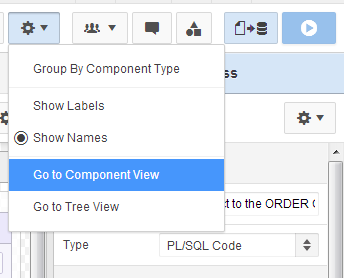
For those like me who might like to occasionally find safety in the refuge of the past, you can find the 4.x Tree View and the 3.x Component View under the cog settings icon - which has been commandeered from shared components.
I've been laughed at on Twitter in the past for enjoying the use of the Component View, but I do appreciate & think it's right that the development team kept it in.
APEX 5 settings menu
I think the Group By Component Type is a good option to include, I'd say advocates of the Tree View in particular thought it an essential feature.
APEX 4.2 rendering icons
For me it kinda replaces the panel of icons to limit what we see. To be honest, the only one of these I pressed with any great frequency was the dynamic actions icon.

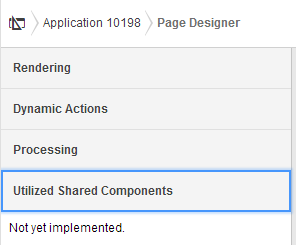
So I feelthis combined with the Page Designer's new accordion shows they got the options balance pretty good. Dynamic actions certainly deserve their own category.
APEX 5 Page Designer Accordion
I wonder if the page designer will get it's own pretty icon in the old navigation bar; and what it might look like - perhaps something similar to the old Oracle Designer logo?
APEX 5 EA navigation bar
I want to add I notice the trees in the Tree View have a greater distance between nodes - anyone found that a problem? Maybe not now we have a categorised accordion?
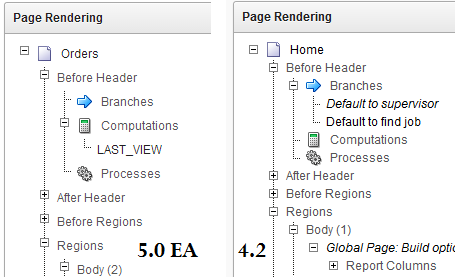
Tree View has extra spacing
You may also notice a few additions in the context menu - I'll bring those up in another post.

The rest of the the development environment has stayed pretty much the same - albeit with flatted UI.
The Application list; Shared Components; Utilities; Administration; SQL Workshop; Team Development - all have not fundamentally changed.

Popups

Anyone who used APEX 3.x can attest that date picker popups were annoying.
In 4.x bigger I think popup windows could use a little jQuery treatment
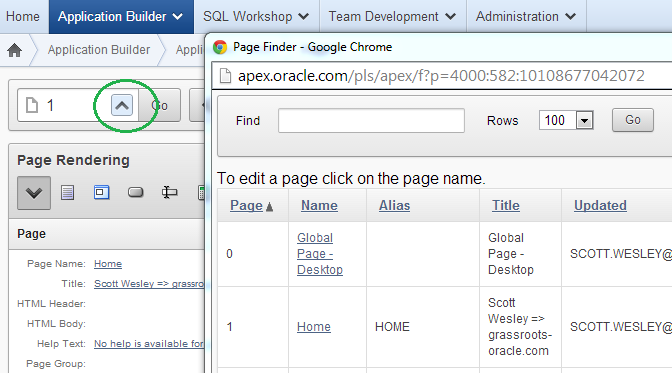
APEX 4.2 page find
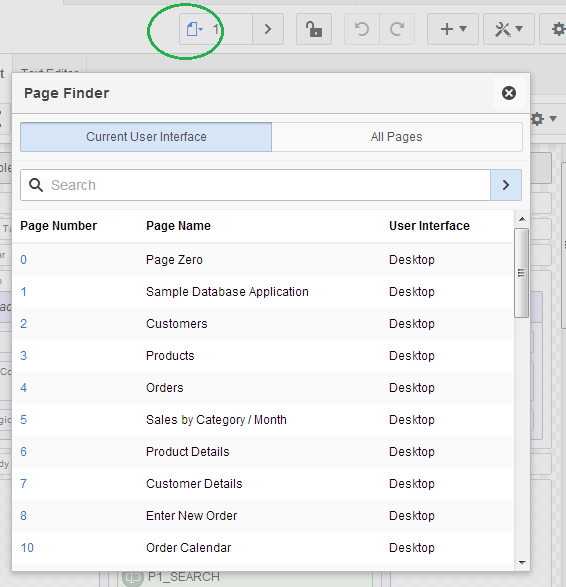
... and so APEX 5 delivers. In a true test of the new modal page mode, the page finder is a good example of how this can work effectively - though I have requested the search facility auto-refreshes.

APEX 5 modal dialog
Interactive Reports now appear to be using this framework, but I won't show any screen-captures because I'd say they need a little more dressing up for EA2.

For further detail on using modals for your own applications, check out a post by Joni at iAdvise.

Runtime Developer Toolbar

Last century it was about saving keystrokes, today it's about saving mouse clicks.

If I had a dollar for every time I did this...
Now you'll find that the runtime links open in a new window - presumable thanks to the final class
<a href="f?p=4000:RUN_PAGE:15746635751085:BRANCH_TO_PAGE_ACCEPT:::FB_FLOW_PAGE_ID,FB_FLOW_ID:0,10198" class="launch-aut">

And at runtime you'll noticed the toolbar has been enhanced once again. For a start it doesn't take up the entire page width and has an option to auto-hide.
APEX 4.2 runtime

APEX 5 EA runtime
There is also a display position option, but I'd be interested to meet someone who didn't prefer it on the bottom. I also can't see myself using the show icons only option, but hey - different strokes...

The new Quick Edit feature replaces the Show Edit Links option. Now it greys out the runtime page and offers you to point a crosshairs cursor at an item or region - it will then jump back to the browser window with your application builder then highlight and open the properties component you select - cool!
Quick Edit

Conclusion

A whole suite of changes and I didn't even have a good look at the new page designer. They all made sense and all we'll need to do is get used to a few new icons - but good progress has been made in helping us be productive.